Moio documentation
Moio is a design app. You draw and style artwork on artboards, arrange it with layouts that adapt to their size, and turn repeating parts into components. When a design should respond, the same document becomes a prototype: a preview rendered as HTML and CSS, which you share with other people.
These pages cover what sets Moio apart and what takes some explaining. They are written for experienced designers. If you also know a bit of CSS, much of the layout model will look familiar.
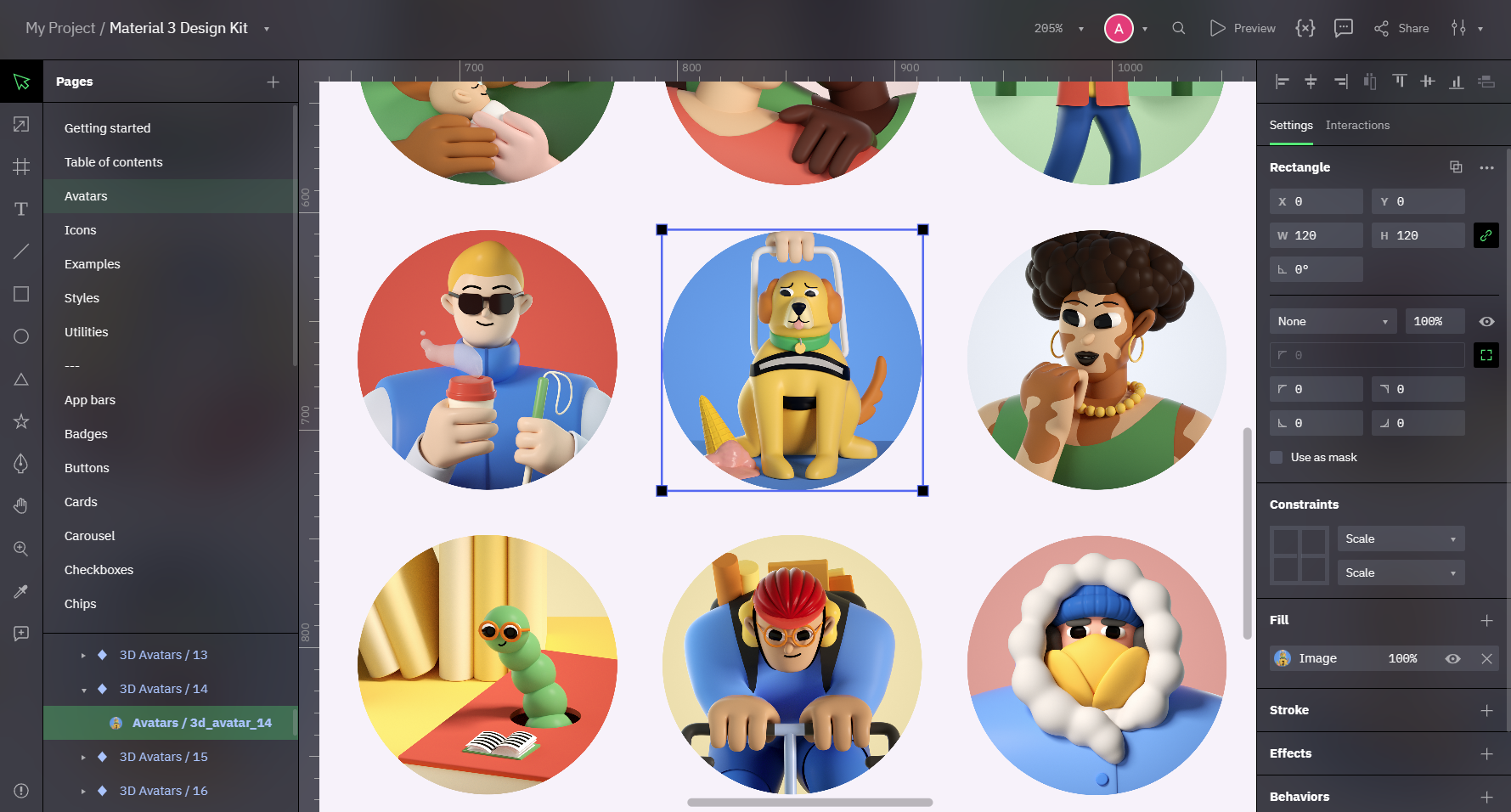
How the pieces fit
- You design on artboards with vectors, text and images, and export layers as PNG, JPEG or SVG.
- Flex and Grid layout make a design adapt where it should.
- Repeating parts become components. Inputs make them configurable, slots leave room for content that differs per instance, and variants and states make them interactive.
- Variables hold values that properties follow and that actions change.
- Interactions are events with lists of actions: navigate, switch a variant, set a variable, branch on a condition.
- Preview renders the document as HTML and CSS and updates while you edit. It is what you share with other people.
I want to…
Create and style
| Task | Start with | Then |
|---|---|---|
| Bring in a design from another tool | Import from Figma, Sketch and XD | What to rebuild after an import |
| Select a layer deep inside a nested design, or lock one | Selecting and locking | |
| Line layers up with snapping and guides | Snapping, guides and scaling | |
| Style fills, strokes, blend modes and effects | Paints, strokes and effects | Vectors, boolean operations and masks |
| Place or crop an image | Images and SVG | Cropping |
| Use your own fonts | Fonts | |
| Fill a design with generated text | AI content generation |
Lay out
| Task | Start with | Then |
|---|---|---|
| Arrange items in a row, a column or a grid | Flex layout | Grid layout |
| Build a page that adapts to its width | Sizing | Grid layout, Size Enters Range and Size Exits Range |
Reuse with components
| Task | Start with | Then |
|---|---|---|
| Turn a repeating part into a component | Components and instances | Overrides |
| Make a component with editable text, color and a content area | Component inputs | Binding properties, Slots |
| Use a component in another document | Reusing components across documents |
Prototype
| Task | Start with | Then |
|---|---|---|
| Find the page for a prototyping task | Prototyping tasks | |
| Give a component hover, pressed or checked states | Variants and interactive states | Transitions between states, Overrides |
| Build a text field or a form | Text fields and forms | Variants and interactive states |
| Build a prototype that remembers things — tabs, counters, toggles | Variables | Binding properties, Set Variable |
| Make something scroll in preview | Scrolling in preview | |
| Make layers draggable, resizable or sortable | Draggable, Resizable and Sortable objects | |
| Understand why a click does nothing | How interactions run | Events and actions reference |
| Find out why a prototype misbehaves | Debugging a prototype | How interactions run |
Export and share
| Task | Start with | Then |
|---|---|---|
| Export layers as PNG, JPEG or SVG | Export images and SVG | |
| Send a prototype to a stakeholder or invite a reviewer | Sharing documents and prototypes | Permission levels, Seats and billing |
| Work in a document with other people | Collaboration and comments | Permission levels |
Manage and look up
| Task | Start with | Then |
|---|---|---|
| Find out what happens when you delete or move something | Projects, moving, deleting and trash | |
| Find out who takes a seat and who manages billing | Seats and billing | |
| Let an AI agent read and edit your documents | Connecting AI agents | |
| Look up a shortcut, an expression function or a color format | Keyboard shortcuts | Expression functions, Color formats, All reference pages |
Conventions
Shortcuts are written for Windows and Linux. On macOS, use ⌘ for Ctrl and ⌥ for Alt; where a shortcut differs in any other way, the macOS form is given next to it.
Names in bold are labels as they appear in the app.
To report a problem, use Report a bug: in the editor it is in the Even more options menu at the right end of the header, in preview in the More options menu in the header.