Variables
A variable is a named, typed value that properties follow and that actions change in preview. You need variables when a prototype has to remember something — a counter, an open panel, a theme color — or when several properties must change together.
Variables belong to the document: every page and every component in it sees the same variables, and they do not travel to other documents.
The Variables panel
Where: top toolbar → the Variables button. There is no keyboard shortcut.
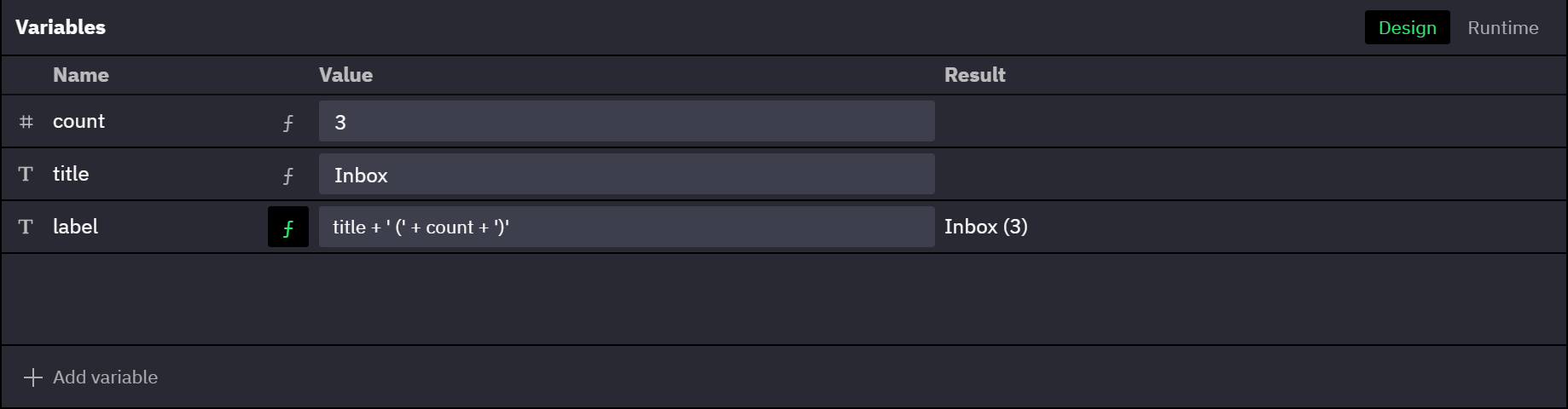
- The panel has two tabs. Design edits the document's variables; Runtime sets the values a preview session starts from (→ Runtime values).
- Add variable opens a type menu; the new row waits for a name.
- A name has to work inside an expression, so it follows JavaScript:
primaryColororprimary_color, notPrimary colororprimary-color(→ Naming and renaming). A rejected name shows the reason above the rows, for example'Primary color' is not a valid variable name, and the row keeps what you typed for you to fix. - Rename, Duplicate and Delete are in the row's context menu: right-click the row anywhere outside a text field. Duplicate and Delete have no other entry point; double-clicking a name also renames. Renaming updates the expressions that use the variable, unless you choose to leave them unchanged (→ Naming and renaming).
- Used by in the same menu lists everything that uses the variable: bound properties and inputs, Set Variable and Conditional actions, and expression variables that read it. Choosing an entry selects the layer, shows its property or action in the right sidebar and highlights it briefly; an expression variable is highlighted in the panel. The list shows the first 20 and says how many more there are. A variable nothing uses shows Not used. Used by is also offered in Runtime mode and in a document you can only view.
- Row order has no effect on evaluation.
Types and values
Where: Variables panel → Design tab → Add variable → type menu, then the row's Value column.
The type is chosen when the variable is created and is fixed for its lifetime. To change it, delete the variable and create a new one. The type decides which properties can be bound to the variable (→ Binding properties to inputs and variables) and what an expression must produce.
| Type | Value field | Starts at |
|---|---|---|
| Number | Number field; anything that is not a number is rejected | 0 |
| String | Text, typed without quotes | empty text |
| Boolean | Checkbox | false |
| Color | Color control; accepts every color format | opaque black |
| Array | The item count, opening the JSON editor (→ Arrays and objects) | [] |
| Object | The field count, opening the JSON editor (→ Arrays and objects) | {} |
Arrays and objects
Where: Variables panel → an Array or Object row → the Value column.
An array holds any JSON array, an object any JSON object; nothing declares what the items or fields look like. A list that a Repeater renders is an array variable.
- The Value column shows the size,
[ 3 items ]or{ 2 fields }, with the JSON as its tooltip. Clicking it opens the JSON editor, which holds the value as indented JSON. - Apply,
Ctrl + Enteror a click outside the editor applies the edit as one undo step;Escapeor Cancel discards it. - Text that is not valid JSON, or that is not of the variable's type, keeps the editor open with the reason, for example
Value must be a JSON array. - The same editor edits a runtime value on the Runtime tab, and the Result column of an expression variable shows an array or object result as its size too.
Value and expression variables
Where: Variables panel → Design tab → the ƒ button on the row (tooltip Switch to expression / Switch to value).
A value variable holds what you type. An expression variable holds a JavaScript expression over other variables and shows what it evaluates to in the Result column. It stays up to date by itself, like a spreadsheet formula: whenever a variable it reads changes, it evaluates again, and every property bound to it follows (→ Expressions).
- Switching to expression keeps the value: the expression starts as the current value written as a literal —
12,"hello",true,'#336699'. Strings need quotes in an expression, unlike in the value field. - Switching to value keeps the last result as the value. An expression that never produced a usable result leaves the type's starting value.
- Only value variables can be changed by a Set Variable action or carry a runtime value.
Changing or deleting a variable
| You do | Bindings | Runtime value | Set Variable actions that target it |
|---|---|---|---|
| Switch to expression | Kept | Cleared | The action's Variable field is emptied; the Validation console lists the action as missing a variable |
| Switch to value | Kept | None until you set one | The variable can be picked in the Variable field; actions emptied earlier stay empty until you pick it again |
| Delete | Removed; each property keeps the value it last showed (→ Binding rules and edge cases) | Deleted with the variable | Same as switching to expression |
Deleting a variable also leaves every expression that references it in error, with the reference kept so you can fix it (→ Expressions).
Runtime values
Where: Variables panel → Runtime tab → Set / Clear on a value variable's row.
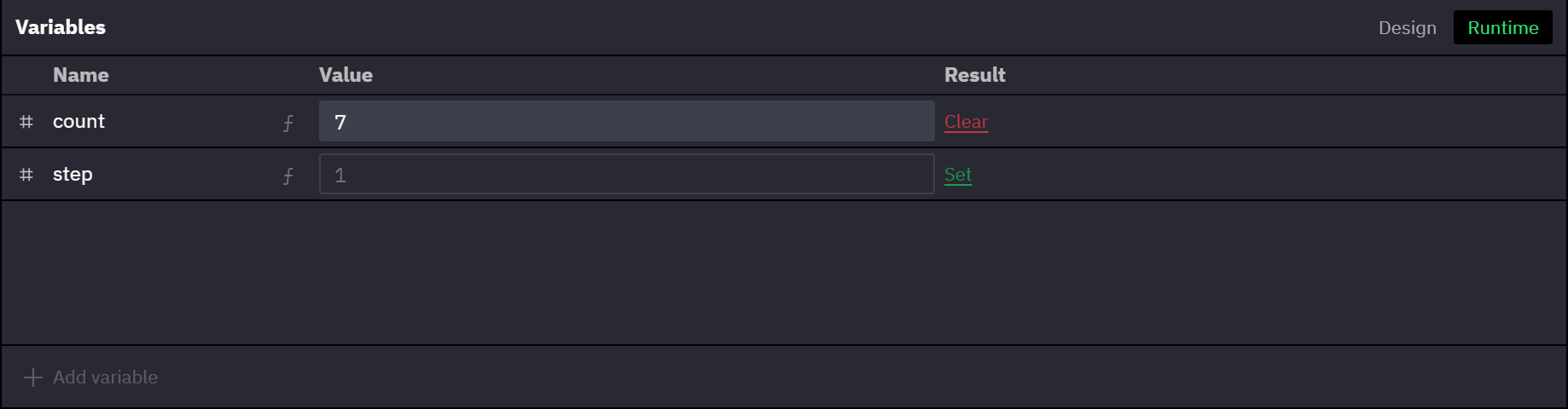
A runtime value is the value a preview session starts from, independent of the value the design uses. Keep loggedIn checked so the canvas shows the signed-in screen, while every preview starts with it unchecked.
- Set copies the design value into the runtime value and unlocks the row's value field. Clear removes it; sessions then start from the design value.
- On the Runtime tab, expression rows show their result with the runtime values applied. Nothing on the canvas changes.
- Names, expressions, the
ƒswitch, adding, duplicating, deleting and reordering are available on the Design tab only.
Variables in preview
Each viewer's session is their own and starts when the preview loads. Set Variable actions change variables for that session only: expression variables re-evaluate against the session's values and every bound property updates. Preview never writes anything back to the document.
What a variable shows in an open preview depends on what has happened to it in that session:
| Variable | In the open preview |
|---|---|
| No runtime value, not changed by the session | Follows edits made in the editor as they happen |
| Has a runtime value, or was changed by the session | Keeps its preview value; later edits to the design value do not show, even when the runtime value equals the design value |
| Runtime value set or changed in the editor | Updates at once, even over a value the session changed |
| Runtime value cleared in the editor | No change until the preview reloads |
The preview header's Variables button lists every variable with its current session value.
Layer changes made during the session
The session also holds the changes that actions and drag gestures make to layers: visibility, size, text, variant, component input values and drag position.
- These changes survive artboard navigation and closing and reopening a modal.
- A changed property keeps its preview value when you later edit the same property in the editor, so an open preview can hide that edit. Properties the session has not touched keep updating live.
- Reloading the preview, or picking an entrypoint in its header, restarts the session from the current document and the configured runtime values (→ Starting over on an entrypoint).
- A Reset action covers one layer and never variables (→ Reset).
This rule covers only the layer changes listed here. Scroll position and pan offset (→ Scrolling in preview) and Sortable order (→ Draggable, Resizable and Sortable objects) follow their own rules.
Related
- Expressions — what an expression can contain and what happens when it fails.
- Binding properties to inputs and variables — making a property follow a variable.
- Events and actions reference — Set Variable, Conditional and Reset.
- Preview — opening and reloading a preview.