Sizing: Fixed, Fill, Hug and min/max
Each layer in a Flex or Grid layout has a sizing mode per axis: Fixed, Fill or Hug content. You need the rules when two modes pull against each other, such as a Fill item in a Hug content parent, or when a size has to stay within limits. Also called: fill container, hug contents, resizing behavior.
The three modes
Where: Properties panel → the two dropdowns with the tooltips Horizontal sizing and Vertical sizing; on a frame they sit directly above the Managed layout header. They show when every selected layer is a Flex or Grid container, or an item in the flow of one.
| Mode | Item in a Flex parent | Item in a Grid cell | On the container itself |
|---|---|---|---|
| Fixed | Keeps its size. | Keeps its size; its alignment places it in the cell. | Keeps its size. |
| Fill | Shares its line's free space along the parent's direction (Flex grow factor) and takes the line's size across it. | Stretches over its cell, spanned tracks included. | Concerns the container as an item of its own parent, never its content. |
| Hug content | Takes the size of its content. | Takes the size of its content; its alignment places it in the cell. | Takes the size of its content plus padding, wherever it sits: top level, nested or absolutely positioned. |
- Across the direction, a line has the parent's inner size. In a wrapped parent, a line is as tall as its tallest item that isn't Fill on that axis.
- Fill is offered to every item in the flow of a Flex or Grid parent, whatever the parent's own sizing is. An absolutely positioned child is never offered it: a Flex or Grid container keeps Fixed and Hug content, and any other layer has no sizing dropdowns.
- Hug content is offered to frames with a Flex or Grid layout and to text layers. A frame without a layout can't hug, and neither can a shape.
- On a text layer the dropdowns and the text's own sizing mode are one setting: Hug content horizontally sets both axes to it.
- W and H stay editable and show the size the layout produced. Typing into one, or dragging a resize handle, sets that axis to Fixed without a message; the other axis keeps its mode. The Scale tool sets both axes to Fixed.
- On one axis, Fill or Hug content excludes a width or height bound to a variable, and Hug content excludes the stretching constraints.
Fill inside a Hug content parent
A parent that hugs has no free space to hand out. Nothing is corrected: the item stays Fill, the parent stays Hug content, and the layout settles the conflict.
Along the parent's direction, a Fill item keeps the size it has, and the parent hugs it like a Fixed item.
Across the parent's direction, the items of a line decide together:
- On a line that mixes Fill items with Fixed or Hug content items, the largest Fixed or Hug content item sets the line's size across the direction. In a row, that is the tallest such item.
- Every Fill item then takes the line's size. A Fill shape that was larger shrinks to it.
- A Fill frame or text layer does not shrink below its current size — or, for a Flex or Grid container, below the size of its items. When that minimum is larger than the line, the line grows to fit it.
- When every item on the line is Fill, each keeps the size it has, and the parent hugs the largest.
- A wrapped parent settles this line by line.
Nested. While its parent hugs, a Fill item that is itself a Flex or Grid container is sized like Hug content on that axis: it takes the size of its content, and Fill items inside it keep their size in turn. On a mixed line across the direction, it then takes the line's size like any Fill frame. A Flex container with no visible item in its flow keeps its size.
In a Grid, the same happens in an auto track, and in an fr track on an axis the grid hugs: the track calculation uses a Fill item's current size, or the size of its content when the item is a Flex or Grid container. The item then fills the resulting cell (sizing items in the cell).
Switching the parent. Setting a Fixed parent to Hug content leaves its Fill items at the size they had filled to, apart from the shrinking described above. Set it back to Fixed and the same items fill again.
Flex grow factor
Where: Properties panel → the field beside the sizing dropdowns (tooltip Flex grow factor). It shows for an item that is Fill along the direction of its Flex parent.
- The free space of a line is the parent's inner size minus the Fixed and Hug content items and the gaps. Fill items divide it in proportion to their factors; the size an item had before plays no part.
- Choosing Fill sets the factor to
1. Typing0sets the axis to Fixed, and the field disappears. - A Fill item never gets smaller than 1 px along the direction.
- The factor applies only along the parent's direction. While the parent hugs on that axis, the field stays but has no effect.
Min and max size
Where: Properties panel header → the More actions button → Add min/max constraints. Four fields appear below W and H (tooltips Minimum width, Minimum height, Maximum width, Maximum height). An empty field reads Auto and sets no limit.
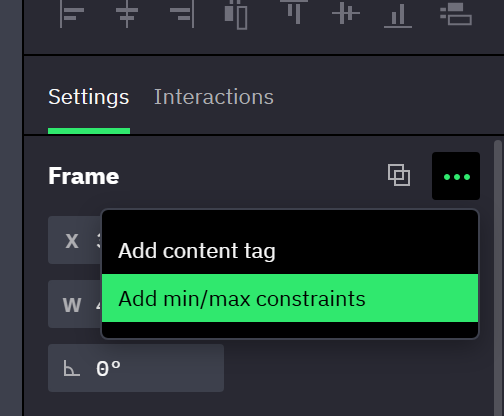
- The entry is offered inside and outside a layout, but not for boolean operations such as Union or layers inside an instance. Remove min/max constraints also clears the four values.
- The limits hold for every change of size: typing, dragging a handle, a Fill or Hug content layout, a stretching constraint. Setting a limit moves the current size into range at once. Preview applies the limits too.
- Typing a minimum above the maximum raises the maximum to it; typing a maximum below the minimum lowers the minimum.
- Fill: an item that reaches a limit stops there, and the other Fill items on the line share what is left. Across the direction, a maximum stops it short of its line.
- Hug content: the container stops at its limit. Past its maximum, the content keeps its size and overflows. A minimum above the content leaves free space, and the container's alignment, Space between and the auto margins of its items place the content in it as in a Fixed container.
- A Maximum width on a Hug content row with Wrap children is the row's wrap boundary: items wrap there, and the row hugs the wrapped lines.
Changing behavior at a size threshold
Sizing modes change a layer's size continuously; they never swap a variant, hide a layer or set a variable. For that, put a Size Enters Range or Size Exits Range event on the layer whose size decides.
Related
- Flex layout — how rotated layers take part in sizing.
- Constraints and absolute positioning — children of frames without a layout.
- Resize action — sets a Fill or Hug content axis of its target to Fixed.
- Instance size — changing the mode gives an instance a size of its own.
- Scrolling in preview — a Hug content frame has nothing to scroll.