Grid layout
Grid is the managed layout that places the layers of a frame in cells of explicit columns and rows; preview renders it as a CSS grid. The editor adds inferred tracks, items that never overlap and sizing that doubles as alignment. Also called: CSS grid.
Adding a grid
Where: right-click a selection → Add Grid layout. It has no shortcut, and it is hidden while every selected layer already has a managed layout.
- Add Grid layout reads the current arrangement: visual columns and rows become tracks, and a layer reaching at least a quarter into a neighboring track gets a span.
- Track sizes become
frvalues in the proportions of the arrangement, all1frwhen nearly equal. The gap fields (tooltips Column gap and Row gap) start at the average spacing between tracks,10when there is nothing to measure. - A single frame without a managed layout becomes the grid itself. Its padding is the smallest distance between a layer and its edge, one value per axis. Any other selection is wrapped in a new grid frame.
- Layer order is rewritten to follow the rows.
- The
+button of the Managed layout section (tooltip Enable managed layout) adds Flex; switching that frame to Grid does not infer tracks.
Tracks
Where: Properties panel → Managed layout → the fields with the tooltips Column count and Row count; the Edit columns and rows button beside them opens the track editor.
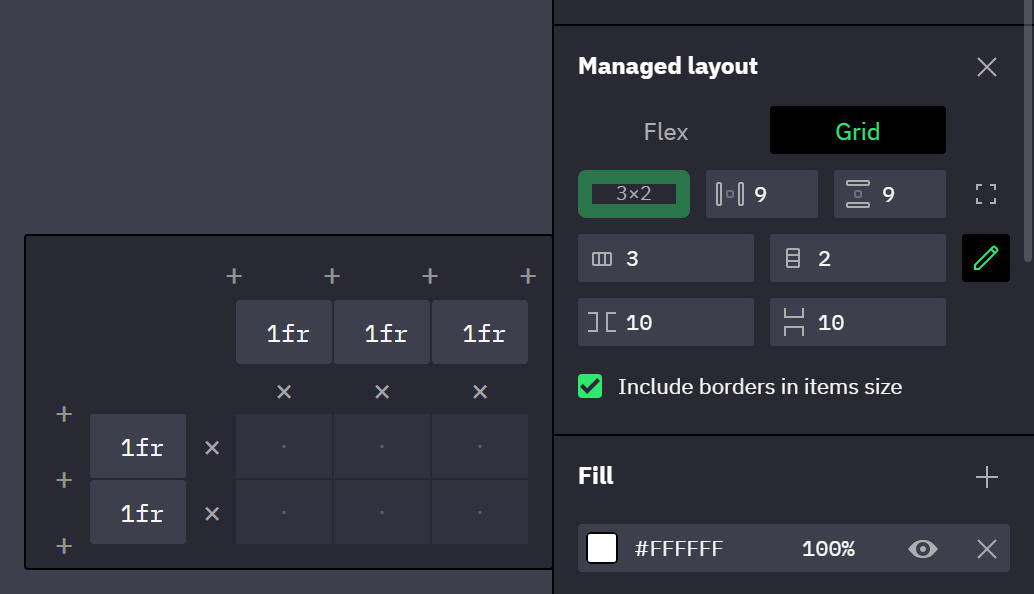
- The count fields add
1frtracks at the end and remove tracks from the end, never below the highest column or row an item occupies. - In the track editor, the
+buttons (tooltips Insert column, Insert row) insert a1frtrack at any boundary, and the×buttons (Remove column, Remove row) remove a track even when items occupy it. The last remaining track has no×button. Tracks can't be reordered. - Inserting or removing a track doesn't renumber the items: each keeps its column and row number, and nothing shifts with the tracks. The items of a removed track land on the items of the track that takes its number, and overlapping items move to the next free cell. An item left beyond the last track moves into it, with its span cut to fit.
Each track in the track editor has a size field (tooltip Track size: auto, fraction (1fr) or pixels (120px)):
| You type | The track becomes |
|---|---|
auto, or anything that starts with a | auto, sized by the items in it (how) |
1fr, 0.5fr | That fr value |
120px or 120 | A fixed size in pixels |
An fr value above 50, such as 120fr | The same number in pixels: 120px |
0fr, a negative number or any other text | Rejected; the field returns to its previous value |
- The gap fields can't go below
0and have no bind menu; padding can be bound. Padding is locked in pairs until you click the Unlock paddings button. - No setting aligns or distributes the tracks inside the frame; alignment is per item.
The Column count and Row count fields accept 1 to 100. The track editor and automatically added rows go past that limit.
Placing items
Where: select grid items → Properties panel, above the Managed layout header → the fields with the tooltips Column, Row, Column span and Row span.
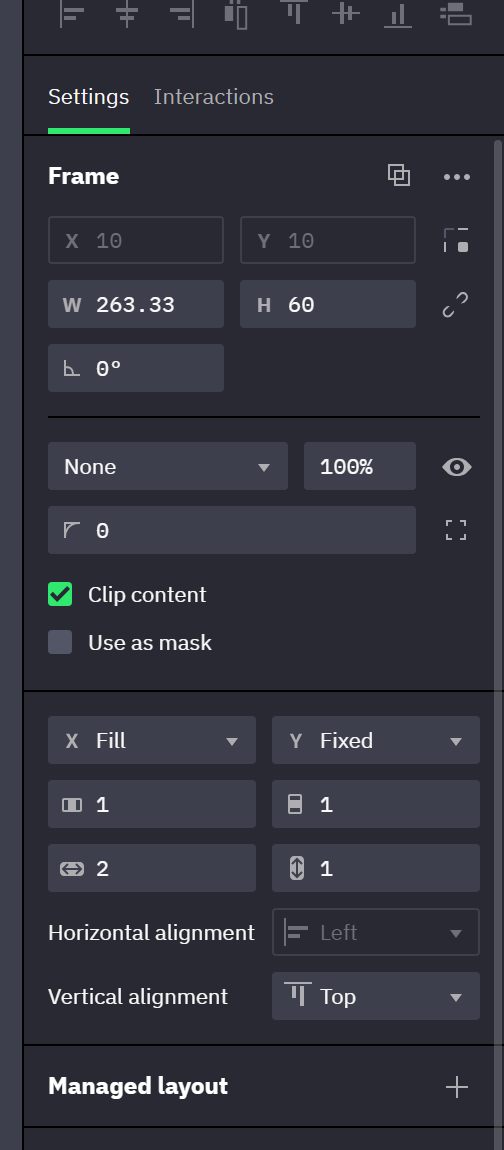
Every item has an explicit cell, and two items never share one.
- The item you edited or dropped is placed first, and every other item follows in reading order. An item whose cell is taken, or whose span doesn't fit the rest of its row, moves forward to the next free position.
- Rows are added automatically, as
1frtracks, when items run past the last row or you type a Row beyond it. Columns are never added: a Column past the last one becomes the last column, and a Column span wider than the grid shrinks to it. - Changing a span sets the item to Fill on that axis. A text layer that hugs its content on that axis stays Hug content.
- An absolutely positioned or hidden layer occupies no cell.
- Dragging: a drop on an occupied cell, marked by an insertion line, moves its occupants forward.
- Arrow keys move the selected items one cell, with or without
Shift. An occupied destination swaps the items. Left and right wrap to the previous or next row; up and down don't. A move that would leave the grid or end in an overlap does nothing (keyboard shortcuts).
Item size and alignment
Where: select grid items → Properties panel, above the Managed layout header → the dropdowns with the tooltips Horizontal sizing and Vertical sizing, and the Horizontal alignment and Vertical alignment dropdowns.
The sizing mode of an axis decides whether its alignment applies (sizing modes):
- Fill stretches the item to its cell, spanned tracks and their gaps included. The alignment dropdown of that axis is disabled.
- Fixed and Hug content keep the item's own size, and the alignment places it: Left, Center or Right, and Top, Center or Bottom. An axis that leaves Fill starts at Left or Top. An item larger than its cell overflows it in a
pxtrack, and in anfrtrack on an axis the grid doesn't hug.
- An
autotrack takes the size of the largest Fixed or Hug content item that occupies only that track, and grows when an item spanning it doesn't fit. On an axis the grid hugs,frtracks are sized the same way and keep their proportions. - For such a track, the calculation uses a Fill item's current size. The item then fills the resulting cell (Fill inside Hug).
- A rotated Fill item in such a track keeps its size, unless the rotation is a half turn. In every other track, Fill stretches the unrotated box.
frtracks share the space the other tracks leave. A grid without anfrtrack leaves that space empty after its last column or row.
Switching between Flex and Grid
Where: Properties panel → Managed layout → Flex | Grid. To remove the layout: the − button (tooltip Disable managed layout), right-click → Remove Grid layout, or Shift + Alt + A.
- Flex → Grid does not infer tracks. A frame that has never been a grid gets one
1frcolumn, and its items stack into added rows. A former grid gets its tracks, gaps and item cells back. - Fill carries over on the same axis in both directions.
- Flex → Grid: across the Flex direction, an item that isn't Fill takes the container's alignment as its cell alignment, or gets back the cell alignment it had in an earlier Grid.
- Grid → Flex: an item that is Fill along the Flex direction gets back the Flex grow factor it had before, or
1; every other item gets0. - Removing the layout leaves every layer where it is, at its current size.
Grids inside instances
Inside an instance a grid keeps its tracks and its items keep their cells: the count fields, the Edit columns and rows button, the Flex | Grid switch and the placement fields are disabled, and the arrow keys don't move the items. The gaps, padding, Include borders in items size and each item's sizing and cell alignment can be overridden (what an instance can override).
Related
- Flex layout — managed layout, the one-dimensional alternative.
- Sizing: Fixed, Fill, Hug — the modes, minimum and maximum size.
- Overrides — what an instance can change.