Scrolling in preview
Scrolling is a behavior you add to a frame: Scrollable for browser scrolling, Pannable for dragging the content. You need one of them as soon as an artboard's content is taller than the preview viewport or a list is longer than its frame. Also called: overflow, scroll area.
Scrollable and Pannable are object behaviors. For Draggable, Resizable and Sortable, see Draggable, Resizable and Sortable objects. For Button, Checkbox, Input, Radio button and Toggle, see component behaviors.
Nothing scrolls by default
- The displayed artboard takes the size of the preview viewport, whatever size it has on the canvas. Content that does not fit is cut at the viewport edge, with Clip content on or off (→ Preview).
- A frame inside the artboard cuts its overflowing content when Clip content is on and shows it outside its bounds when it is off. Neither setting scrolls.
Scrollable
Where: Settings tab → Behaviors → the + button (tooltip Add behavior) → Scrollable.
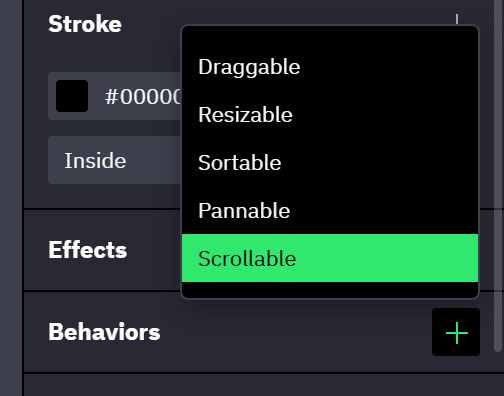
Scrollable is offered on frames, including artboards, components and instances, and is disabled in the menu for every other layer (→ Draggable, Resizable and Sortable objects). The frame then scrolls with the wheel, the trackpad and its scrollbar.
- Axis starts at Both. Pick Vertical for a page or a list: a frame that scrolls on both axes also scrolls sideways as soon as one layer sticks out past its right edge.
- A Scrollable frame always clips, with Clip content on or off. On the axis that Axis leaves out, overflowing content is cut and cannot be reached.
- An inner frame needs a Fixed or Fill size on the scrolling axis. A Hug content frame grows with its content, so nothing overflows and nothing scrolls (→ Sizing).
- An artboard scrolls with any sizing, because in preview it always has the viewport's size.
- A scrollbar appears only on an axis where the content is larger than the frame. It is the browser's scrollbar and cannot be styled.
On the artboard or on an inner frame
- Scrollable on the artboard scrolls the whole screen inside the viewport. Every layer of the artboard moves, including a header or a tab bar.
- Scrollable on an inner frame scrolls that region only. Everything outside the frame stays where it is.
Pannable
Where: Settings tab → Behaviors → the + button (tooltip Add behavior) → Pannable.
Pannable moves the frame's content with a drag: press anywhere in the frame and pull. The pointer shows a grab hand, the content keeps gliding after a fast release, and content dragged past its own edge snaps back on release.
- A Pannable frame does not react to the wheel or the trackpad, and it has no scrollbar. Use Scrollable when viewers expect to scroll with the wheel.
- Pannable does not clip. Turn Clip content on, or the overflowing content shows outside the frame.
- The frames-only rule, the Axis default and the need for a Fixed or Fill size are the same as for Scrollable.
Keeping a header in place
There is no setting that holds a layer in place while the rest scrolls. A header or a tab bar stays put only when it sits outside the frame that scrolls.
- Leave the artboard without Scrollable.
- Give the artboard a vertical Flex layout with the header as the first item, at a Fixed height.
- Put the rest of the screen into one frame below the header, set its height to Fill and add Scrollable with Axis set to Vertical.
In preview the artboard has the viewport's height, so the content frame fills what the header leaves and scrolls inside it. A bar at the bottom is a third item after the content frame.
Imported designs
In some imported designs, a frame that was set to scroll arrives with Pannable on the same axis, not with Scrollable. It drags but does not react to the wheel; remove Pannable and add Scrollable to get wheel scrolling (→ Import & copy paste).
What persists
A Reset action does not cover the scroll position of a Scrollable frame or the offset of a Pannable frame: after Reset the frame shows the same part of its content as before (→ Events and actions reference).
Related
- Draggable, Resizable and Sortable objects — the other behaviors of the Behaviors section and how they combine with Pannable.
- Preview — the viewport and how to resize it.