Preview
The preview shows one artboard of the document as HTML and CSS in its own browser tab, with every event, action and behavior running. You need it to try a prototype, to test a layout at other sizes and to hand a prototype to someone else. Also called: prototype preview.
Edits made in the editor appear in an open preview without a reload. The exception is anything the viewer's session has already changed, which keeps its preview value until the preview reloads (→ Variables in preview).
Opening the preview
Where: editor header → Preview. There is no keyboard shortcut.
The preview opens in a new browser tab, one tab per document: clicking Preview again reuses that tab. Which artboard it starts on depends on the selection:
| Selection | Preview starts on |
|---|---|
| An artboard, or a layer inside one | That artboard |
| Nothing, or only layers outside every artboard | The artboard whose top-left corner is nearest to the top-left corner of the current view, preferring a corner that is in view |
| No artboard on the page | Nothing opens; a message says there are no artboards that can be previewed |
Preview entrypoints
Where: right-click an artboard, on the canvas or in the Layers panel → Set as preview entrypoint. Unset as preview entrypoint removes it.
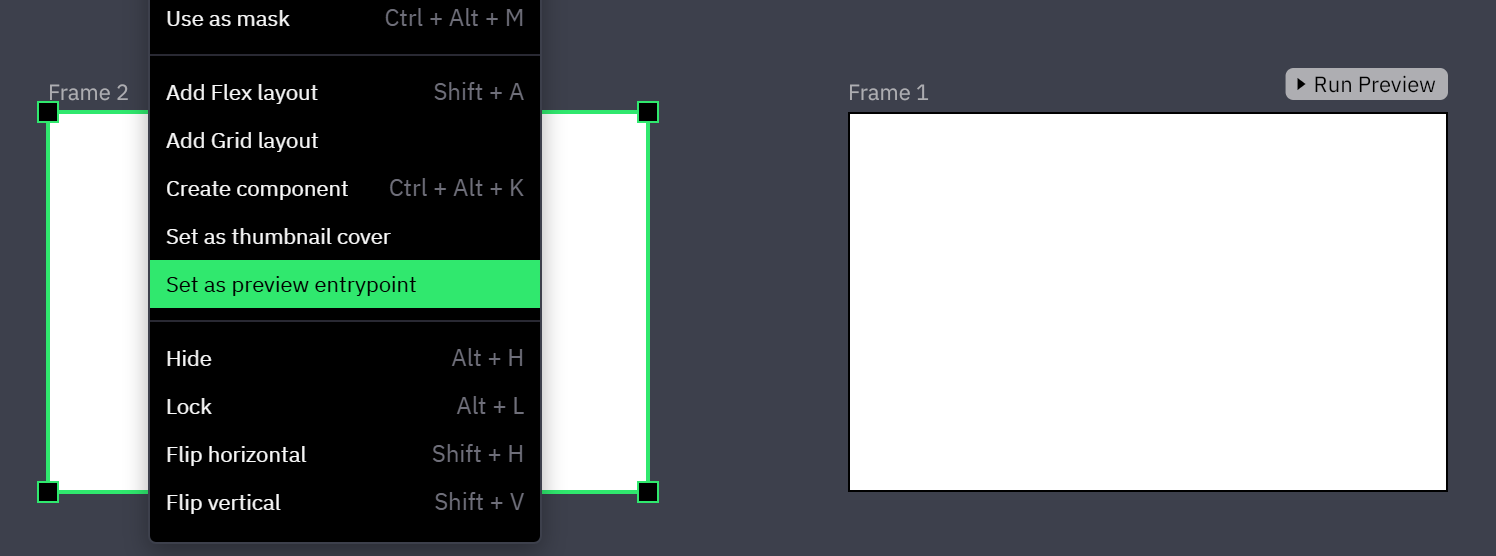
- An entrypoint artboard shows a Run Preview button above its top-right corner, level with its label; on an artboard too narrow for it, the button shrinks to a play icon. The button opens that artboard in the preview, whatever is selected.
- An entrypoint changes nothing else: Preview in the header follows the selection as before, and a link opens the artboard it names.
Pages, artboards and the address
The preview displays one artboard at a time. Its address names the document and the artboard it starts on.
- Go To Artboard changes the displayed artboard but not the address, and adds no step to the browser's Back button (→ Go To Artboard).
- The address carries no state. Sending it to someone shares where the prototype starts, not where you are in it or what you have done.
- To restart a prototype, reload the tab: the session starts again on the artboard in the address.
- A link to an artboard that has been deleted opens the top-left artboard of the first page that has artboards. In a document with a single artboard, every link opens that artboard.
- When the artboard on screen is deleted while the preview is open, a message says that the requested frame does not exist.
Viewport size
Where: preview header → W and H fields (tooltips Viewport width and Viewport height), or the drag handles on the left, right and bottom edges of the viewport.
Resizing the viewport resizes the artboard itself. Nothing is scaled to fit.
- The viewport starts at the size the artboard has on the canvas, limited to the available space in the browser window. In the menu at the right end of the header (tooltip More options), Reset to original returns to it and Fit to screen takes all the space the window leaves.
- Layers inside the artboard follow a new size only through their layout: Fill sizing (→ Sizing), constraints (→ Constraints) or
frtracks (→ Grid layout). A layer with none of these keeps its size. - A layer resized this way fires its size-range events (→ Size Enters Range and Size Exits Range).
- Content beyond the viewport is cut. Nothing scrolls until a frame is Scrollable (→ Scrolling in preview).
- The full-screen button next to the size fields (tooltip Full screen) hides the header and gives the viewport the whole browser window.
Escexits and restores the previous size; with a modal open,Esccloses the modal first.
Width and height go from 100 to the space the browser window leaves around the viewport, and the W and H fields stop at 5000. A larger artboard cannot be shown at its full size in a smaller window.
What preview renders
The browser lays out the artboard. A Flex frame becomes a CSS flex container and a Grid frame a CSS grid container, text is real text, and the document's fonts load as web fonts before the artboard first shows.
The preview header
Where: preview header, to the right of the size fields.
- The speech-bubble button with a
+(tooltip Add comment) places a comment pin. The speech-bubble button with three dots (tooltip Comments) opens the list of comment threads; pins show only while that list is open. - The terminal button (tooltip Debug console) logs the events and actions that run while the side panel is open. The braces button (tooltip Variables) lists every variable with its current session value.
Who can open a preview
Opening a preview requires signing in with an account that has at least View on the document, directly or through its folder, project or workspace. There are no public links: share the document, then send the preview's address from the browser (→ Links).
View is enough to use the prototype and to comment (→ Choosing a level, Who can do what).
Related
- Scrolling in preview — making an artboard or a region scroll.
- How interactions run — when events fire and in which order actions run.
- Sharing documents and prototypes — giving someone access to a prototype.